Asset Mage W

Testing and Tweaking

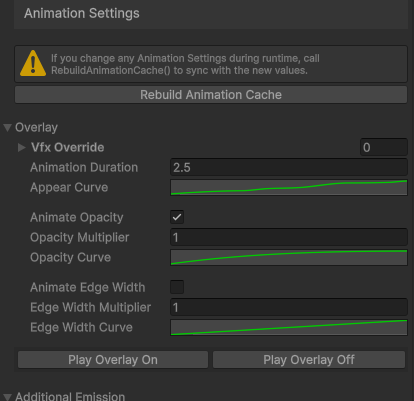
To test the Special Effects, enter Play Mode and open the Special Effects prefab, which is a child object of your character. In the Animation Settings, you'll find buttons that let you test it in action.

The Animation Settings will help you create more interesting animations for turning Special Effects on and off. When Special Effects are turned off, all animation curves are reversed.

If you change any Animation Settings during runtime, click the Rebuild Animation Cache button or call RebuildAnimationCache() to sync with the new values. These changes aren't expected to be frequent and this method is not intended for per-frame use.
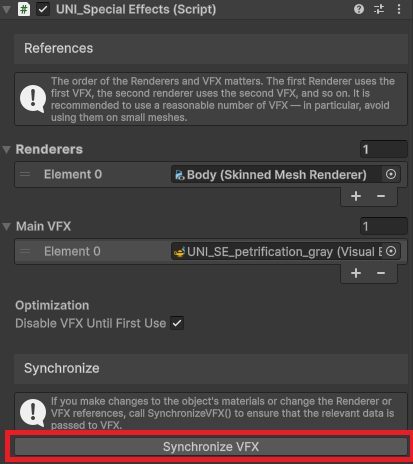
If you make changes to the object's materials or change the Renderer or VFX references, click the Synchronize VFX button or call SynchronizeVFX() to ensure that the relevant data is passed to VFX.
If you have multiple renderers with multiple materials, the SynchronizeVFX() function will only load the values for the first material of the first renderer. The following properties are transferred from the material to the VFX: DissolveDirection, DissolvePattern, DissolvePatternScale, DissolveObjectRangeX,Y,Z, DissolveDirectionObjectIvert. The following properties are transferred from the Special Effects script to the VFX: SkinnedMesh, UseStandardMesh, StandardMesh and in the editor it will also check for presence of Uniform Baker. For standard Mesh renderers, the center of the mesh is saved to AdditionalOffsetForCenterParticles.

If your character uses more materials, don’t forget to select all materials of the character and edit them at once to make your work easier.

During runtime, when an animation is playing, the Special Effects script takes control of the Material Property Block for all materials in all renderers set in the script and overwrites it. Do not modify the Material Property Block for these materials at this time.